HTC is giving away an awesome Hydra Edition HTC One M8

HailHydra

If you’ve been keeping up with everything happening in the Marvel Cinematic Universe, you know there’s no need to whisper “Hail Hydra” to your closest friends anymore. In fact, thanks to HTC, all you need to do is flash the back of your HTC One M8 as if it were a badge.
Captain America: The Winter Soldier included more than a couple of references to modern tech in order to figure out what was going on with Hydra. While the Apple Store wasn’t exactly subtle, you may have missed SHIELD’s fearless leader rocking a special HTC One M7 full of super spy gear. Marvel and HTC teamed up to release a SHIELD edition of the HTC One M8 before the release of the most recent Captain America film, and now it’s time for Hydra fans to get some attention.
You can’t purchase the Hydra Edition HTC One M8, but you can participate in a content to win one of ten special numbered versions of the phone. Like the SHIELD edition of the phone, this version is a collectors edition with the Hydra emblem on the back and will likely never be made available to purchase. That means there will be ten SHIELD versions and ten Hydra versions of the HTC One M8 on Earth, and we’re not going to speculate on what happens when you put one of each in the same room.
If you want to try and grab one of these for yourself, head to the HTC contest page and follow the directions.

How To Hack WPA/WPA2 Wi-Fi With Kali Linux


Step One:
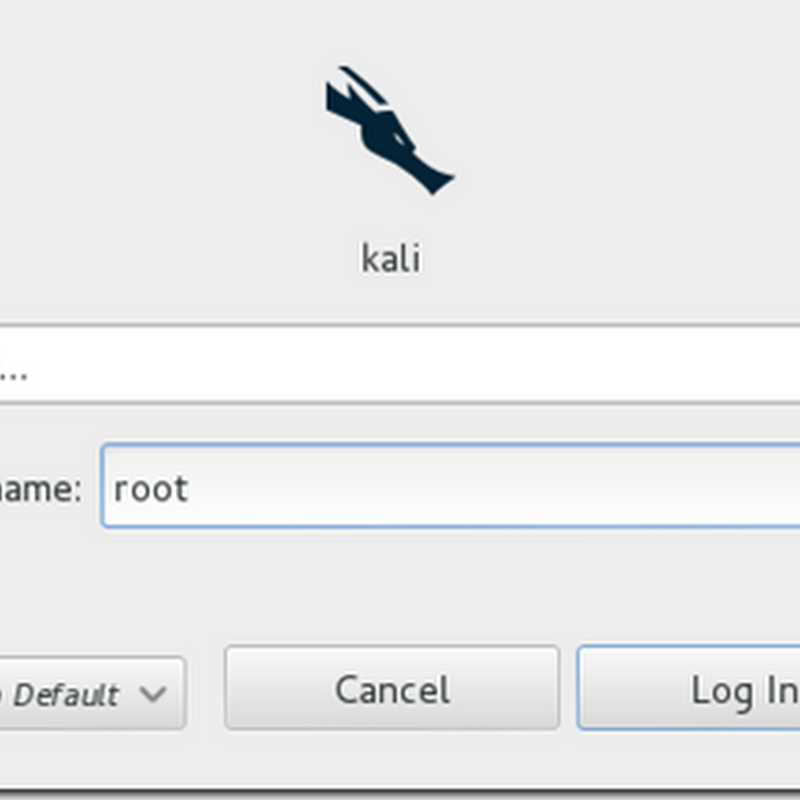
Start Kali Linux and login, preferably as root.
Step 1
Step Two:
Plugin your injection-capable wireless adapter, (Unless your computer card supports it). If you’re using Kali in VMware, then you might have to connect the card via the imageicon in the device menu.
Step Three:
Disconnect from all wireless networks, open a Terminal, and type airmon-ng
Step 3
This will list all of the wireless cards that support monitor (not injection) mode. If no cards are listed, try disconnecting and reconnecting the card and check that it supports monitor mode. You can check if the card supports monitor mode by typing ifconfig in another terminal, if the card is listed in ifconfig, but doesn’t show up in airmon-ng, then the card doesn’t support it.
You can see here that my card supports monitor mode and that it’s listed as wlan0.

Step Four:
Type airmon-ng start followed by the interface of your wireless card. mine is wlan0, so my command would be: airmon-ng start wlan0
Step 4
The “(monitor mode enabled)” message means that the card has successfully been put into monitor mode. Note the name of the new monitor interface, mine is mon0.
Step Five:
Type airodump-ng followed by the name of the new monitor interface, which is probably mon0.
Step 5
Step Six:
Airodump will now list all of the wireless networks in your area, and lots of useful information about them. Locate your network or the network that you have permission to penetration test. Once you’ve spotted your network on the ever-populating list, hit Ctrl + C on your keyboard to stop the process. Note the channel of your target network.
step 6
Step Seven:
Copy the BSSID of the target network
Step 7
Now type this command:
airodump-ng –c [channel] –bssid [bssid] –w /root/Desktop/ [monitor interface]Replace [channel] with the channel of your target network. Paste the network BSSID where [bssid] is, and replace [monitor interface] with the name of your monitor-enabled interface, (mon0).

A complete command should look like this:
airodump-ng -c 10 --bssid 00:14:BF:E0:E8:D5 -w /root/Desktop/ mon0

image
Now press enter.
Step Eight:
Airodump with now monitor only the target network, allowing us to capture more specific information about it. What we’re really doing now is waiting for a device to connect or reconnect to the network, forcing the router to send out the four-way handshake that we need to capture in order to crack the password.
Also, four files should show up on your desktop, this is where the handshake will be saved when captured, so don’t delete them!

But we’re not really going to wait for a device to connect, no, that would take too long. We’re actually going to use another cool-tool that belongs to the aircrack suite called aireplay-ng, to speed up the process. Instead of waiting for a device to connect, we’re going to use this tool to force a device to reconnect by sending deauthentication (deauth) packets to the device, making it think that it has to reconnect with the router.
Of course, in order for this tool to work, there has to be someone else connected to the network first, so watch the airodump-ng and wait for a client to show up. It might take a long time, or it might only take a second before the first one shows. If none show up after a lengthy wait, then the network might be empty right now, or you’re to far away from the network.

You can see in this picture, that a client has appeared on our network, allowing us to start the next step.

Step 8
Step Nine:
leave airodump-ng running and open a second terminal. In this terminal, type this command:
aireplay-ng –0 2 –a [router bssid] –c [client bssid] mon0The –0 is a short cut for the deauth mode and the 2 is the number of deauth packets to send.
-a indicates the access point (router)’s bssid, replace [router bssid] with the BSSID of the target network, which in my case, is 00:14:BF:E0:E8:D5.
-c indicates the clients BSSID, noted in the previous picture. Replace the [client bssid] with the BSSID of the connected client, this will be listed under “STATION.”
And of course, mon0 merely means the monitor interface, change it if yours is different.

My complete command looks like this:
aireplay-ng –0 2 –a 00:14:BF:E0:E8:D5 –c 4C:EB:42:59:DE:31 mon0

Step 9
Step Ten:
Upon hitting Enter, you’ll see aireplay-ng send the packets, and within moments, you should see this message appear on the airodump-ng screen!
image

step 10
This means that the handshake has been captured!Open-mouthed smile You can close the aireplay-ng terminal and hit Ctrl + C on the airodump-ng terminal to stop monitoring the network, but don’t close it yet just incase you need some of the information later.
Step 11:
This concludes the external part of this tutorial. From now on, the process is entirely between your computer, and those four files on your Desktop. Actually, the .cap one, that is important. Open a new Terminal, and type in this command:
aircrack-ng -a2 -b [router bssid] -w [path to wordlist] /root/Desktop/*.cap

-a is the method aircrack will use to crack the handshake, 2=WPA method.
-b stands for bssid, replace [router bssid] with the BSSID of the target router, mine is 00:14:BF:E0:E8:D5.
-w stands for wordlist, replace [path to wordlist] with the path to a wordlist that you have downloaded. I have a wordlist called “wpa.txt” in the root folder.
/root/Desktop/*.cap is the path to the .cap file containing the password, the * means wild card in Linux, and since I’m assuming that there are no other .cap files on your Desktop, this should work fine the way it is.

My complete command looks like this:
aircrack-ng –a2 –b 00:14:BF:E0:E8:D5 –w /root/wpa.txt  /root/Desktop/*.cap
image

Now press Enter.
Step 12:
Aircrack-ng will now launch into the process of cracking the password. However, it will only crack it if the password happens to be in the wordlist that you’ve selected. Sometimes, it’s not. If this is the case, then you can congratulate the owner on being “Impenetrable,” of course, only after you’ve tried every wordlist on the internet!
Cracking the password might take a long time depending on the size of the wordlist. Mine went very quickly.
If the phrase is in the wordlist, then aircrack-ng will show it too you like this:

image

The passphrase to our test-network was notsecure, and you can see here that aircrack found it!
If you see a message similar to this, then your tests have penetrated the network. Tell the owner that he needs a stronger password!

How to Know How Much Traffic a Website is Getting


There are many ways to check how much traffic a website is getting, here I share 10 ways to check it, and you can try any one that you want.
Traffic of website is actually a visitors on a website, there are many services and website on internet available that shows the website status, alexa is top of them, but to know the exactly visits you must have access on the website, if don’t you can use any of tips that I share here.

1.    Alexa


Alexa is top rank site which shows the total visitors and incoming traffic graph, it has many information about a website, normally if website get index in google and getting some traffic then it also indexed in alexa and then alexa automatically shows the ranking according to its algorithm. Visit website now, just enter the url of website in search term and you are on.

2.    Google Analytics


For this term you must have access to the website back-end, without access you can’t able to use it, you must follow the other ways to find the total visitors. Just add website in google analytics and you must also verify your site. After max of 24 hours your visitors with graph of countries and browsers displays when you check it out on main page visit google analytics.

3.    Compete


That most powerful tool that you can also find the total visitors, which is nearly close to its real, compete widely used to check the traffic of website, you must go and view it. You can also find the competitor site traffic. It’s very flexible. Visit the website now.

4.    Quantcast


Quantcast another tool which not only shows the total site traffic it shows the complete graph that how the site is designed. How much errors this website have. This website is also free to use, you can also buy premium membership of it.Visit the site for more info.

5.    Simrush


Simrush is another leading website which used widely to check the site position and how much traffic website is getting and where and in which ways. Simrush is really something you buy premium membership. While using the premium membership you have access to the competitor traffic sources, you can easily watch that my site how much better perform in search engines.

There is also free membership but it has limited access, for more and powerful acknowledge you must buy premium. Visit the website.

6.    Traffic Estimate


Another powerful and compatible site which estimation is more than 95% accurate, you must use it. It’s totally free and also shows the details graph of traffic that where and which ways the website gets the traffic.

Site design is very unique and I mostly check the site visitors using this website, there is no cast and you can signup to get more options while checking the website.

7.    Comscore


Another great tool provide the information about any website, it also allows to check the competitor website without have back access. It is American based analytic company providing the marketing data and analysis to world largest companies and agencies. Visit the website and enter the site information that you want on the main screen.

8.    Statscrop


Another web service that make you to explore the site information and its total traffic history, this site also allows you to check the competitor’s website works.
Statscrop is also used to get a backlink to your site, actually this site also index the page of site back on google and other website search engines. With this you got the backlink also. Visit the website.

9.    Webstatsdomain


Another popular website allows you to make analysis of data from domain and keywords. You can also track the statistic parameters, if you signup of their website. This site also have whois record tool which is better to know the competitor information.

Webstatsdomain also have another tools like page rank checker you can also explore it, while checking the site you also get this info in the main panel.

10.    Siteworthtraffic


Another site which is total free to used, its design is very easy to understand, you can estimate value daily pageview, daily visitors of website that you check on the main site.

Site is very popular to get index another site quickly, If you register a new website then simple go on the site and search your site, with this you will get a page contains the information about your site, google capture it and index your site very quickly. Visit now.

If you have another site please let share on the comments below, sites must have good acknowledge in site info performance.

Adding A Popular Post Widget To Blogger Blogs

So here now i am telling you how to add popular post widget to blogger which is very easy to do. Before adding this gadget to your blog we have to find that why and which thing this widget bring in your blog. This one brings more visitors to your blog with more effective way. There are some more merits and works are here which brings results after adding this to your blogger blog.
1. Attract more visitors to your blogger blog.
2. People easily know your top viewed post.
3. Its easy to navigate from one post to another.
4. Blog look more professional.

So here are some steps to add it to your blog.


Setup 1.

            Go To Blogger > Layout
            Then click on "Add a Gadget"  Like in image


     Now the box of gadget will appear like this.
     You have to select Populer Posts


 So now here Next the new box appear after clicking on it.
 Its look like this.


 Here you have some new options about editing the popular post widget
 If you check the box of  "image thumbnail" it display the image thumbnail in posts
 If you uncheck it simply it don't diplay any image and only text will appear.
 Click on save and Enjoy.
Your popular post gadget added to your blog

How To Install And Run Android 4.0 On Mac, Windows PC Or Linux

The mobile smartphone and tablet industry seems to have a very prominent divide, with a lot of consumers having their favorite operating system and choosing to stick to hardware which is powered by their chosen OS. Obviously fans of Apple’s iOS use the iPhone and iPad devices, whereas Android lovers have a wide range of hardware to choose from due to the fact that the OS is available to multiple manufacturers.
But what happens if you are a die hard fan of iOS, or Windows Phone but you still want to sample the delights that Android Ice Cream Sandwich has to offer? I personally am an iPhone user for the last five years and will continue to be for the foreseeable future. But after recently getting my first taste of Android, I am severely tempted to shell out for a second device so I can have the benefits that both provide. For those that can’t, or won’t, purchase a second device then why not run Android 4.0 in virtualization on your desktop or laptop in order to see the Ice Cream Sandwich experience first hand?

Android 4.0 is an operating system in its own right, but instead of running on a dual boot setup, we install and run ICS within a free of charge virtualization application known as VirtualBox. VirtualBox runs like any other application or program on your machine, but offers the benefits of being able to install a secondary OS within it which can be invoked quickly by the user. For all those die hard iOS and Windows Phone fans out there, this is a perfect way to experience the delights of Android.
Are you ready for a whirlwind journey down Ice Cream Sandwich lane? Buckle in and follow the simple steps below.
Step 1: Head over to the official Oracle VM VirtualBox site and download the relevant VirtualBox binary for your computers operating system (Windows/Mac OS X/Linux/Solaris).
Step 2: Find the saved location of the downloaded VirtualBox binary and install as you would with any other native application making sure to follow all on screen prompts and instructions.
Step 3: Head on over to the VMLite website and download a copy of the Ice Cream Sandwich which has been preconfigured for virtualization and features seamless mouse support for navigation. The download weighs in at 88MB in size so may take a while to download depending on your connection.
Step 4: Locate the downloaded ‘Android-v4.7z‘ file and extract the contents from within.
Step 5: Once the Android-v4.7z file has been opened, locate a file from within the archive called ‘Android-v4.vbox‘ which as you can tell by the file extension is a pre configured VirtualBox file.
Step 6: Double click on the Android-v4.vbox file which will load the VirtualBox application and boot up the ICS file.
Step 7: When the boot menu is presented in VirtualBox, press ‘start‘ on the top toolbar and then if required select the ‘Android Startup from /dev/sda‘ option.
Step 8: All steps are complete. Android 4.0 ICS should now be booting up allowing you to enjoy that Android goodness.
Windows and Linux users may find that an alternative, specific version Android 4.0 may be required, which can be found by visting the Android-x86 page. The performance of the Android ICS virtual installation will obviously not be as smooth as intended on an actual device built for purpose, but it does give a feel of the OS with apps being able to launch as well as widget customization.

Sony has 3 good reasons for not putting 2K screens in phones

xperia-z3
The LG G3 is a seriously nice phone with a seriously high-resolution display. But is a 2560 x 1440 display really necessary on even a 5.5-inch smartphone? Sony doesn’t think so. They opted for a 1080p display on their new flagship: the Xperia Z3. Sony knows a thing or two about building a quality screen and they’ve got 3 very good reasons why they didn’t feel the need to splash for a 2K display.
Their first argument is one that you’ve heard before — that our eyes have a hard time perceiving the difference between 1080p and 2K on smaller screens. There was a point not too long ago where some experts said that 300ppi was about the most our eyes could register, but that’s changed. The HTC One M8 packs 441ppi (1080p on a 5-inch screen), and numerous reviewers have noted how good it looks.
Samsung took a step back with the Galaxy S5. With a 5.1-inch display, its pixel density is actually slightly lower than the Galaxy S4, yet you’d be hard pressed to find anyone who thinks the S5 doesn’t offer better visuals. There’s more to it than just pixel density, and Sony knows that… which brings us to reason number two. According to marketing director Callum MacDougall, it was more important to integrate advances from Sony’s other displays: upping the brightness, widening the color gamut, and reducing noise with the X-Reality processing engine.
At this point, though, every company’s flagship phone is going to offer a stunningly good picture and most consumers will probably only notice that screen images look really good. But Sony’s final reason for sticking with 1080p doesn’t have anything to do with visuals. Skipping a 2K display allowed Sony to squeeze two full days of use out the Xperia Z3.
Sony’s banking on the fact that — as long as the screen looks really good — users will care more about the Z3′s impressive battery life than a competitor’s retina-busting 2K display. I have to think they’re right… but even if they’re wrong, they can always tout the Z3′s ability to play PlayStation 4 games.

How to install Kali Linux on your Nexus 5

Screenshot_2014_03_05_08_57_52

Having used the Pwnpad Community Edition for quite some time I was wondering if you could cram a true research / penetration testing tool in an even smaller package, the Nexus 5.

First you need to “root” your device. I’ve done this using CF-Auto-root which was very easy to do.
Next is to install Kali Linux on top of your Android OS in a chroot environment. For that I used “Linux Deploy”, you can find the App in the Playstore. You can find an article on this on kali.org. You can use this article however I found a couple of minor changes you need to perform for it to install successfully. I did walk into some issues when installing.
First I’ve changed the size to 7128 (see [Kali Linux (Chroot) on Galaxy S4 i9505/i9500 http://forum.xda-developers.com/showthread.php?t=2400638. I’m not sure wether this is necessary since I haven’t test it with the default settings but I thought it was a good idea to avoid any storage issues.
Next it appears that the Android Kitkat 4.4 and Linux Deploy combination has problems with the wget applet. It is unable to resolve DNS names. To get around this is to use the IP address instead of the domainname. You can get the IP address with host/nslookup/dig etc. More information on this issue: https://github.com/meefik/linuxdeploy/issues/84:
Screenshot_2014_03_05_08_01_07
Screenshot_2014_03_05_08_00_25
Then click the “Install” button and wait until it’s finished:
Screenshot_2014_03_05_08_39_26-1
Next is to verify whether you can login with SSH and VNC. You can do this through your (wireless) network or locally with tools such as JuiceSSH and VNC Viewer:
Screenshot_2014_03_05_08_57_52
And we’re done! Unfortunately it’s not possible to connect your ALFA Networks AWUS036H or TPLink TLWN722N USB adapter and do some WIFI pentesting. Your Android device needs to have the drivers with it’s kernel compiled. But that’s a whole new project. Also see the second paragraph of this blog: Kali chroot on Android